CapStars
A fast, offline video editor for Android. Multi-track timeline, real-time effects, keyframe animation. No accounts, no cloud, no ads.
Get it on Google Play
A fast, offline video editor for Android. Multi-track timeline, real-time effects, keyframe animation. No accounts, no cloud, no ads.
Get it on Google Play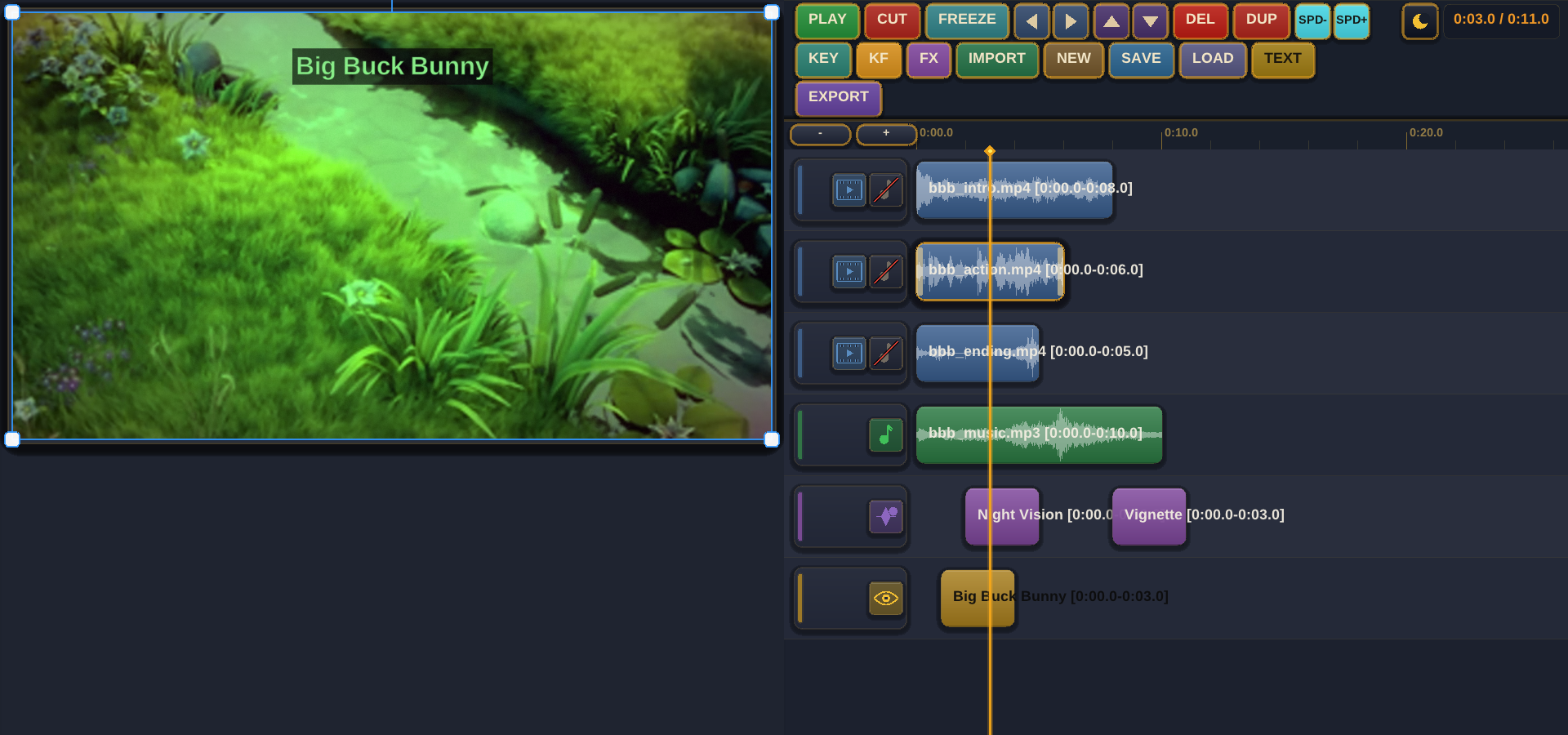
Video, audio, text, and effect tracks. Drag to move, trim, and arrange clips on a zoomable timeline.
Night Vision, Pixelate, Glitch, Thermal, Halftone, Vignette, Fisheye, Duotone, Letterbox, and more.
Animate position, scale, rotation, and opacity over time. Per-clip keyframe curves with interpolation.
Volume, fade in/out, speed adjustment. Waveform visualization on timeline clips. Beat sync.
Brightness, contrast, saturation, hue, sepia, invert, chroma key (green screen) with tolerance control.
Presets for YouTube, Instagram, TikTok, Twitter. Custom resolution and frame rate. Hardware-accelerated encoding.
Custom fonts, size, outline, positioning. Drag to place on the preview. Animatable with keyframes.
Save and load projects. Full undo/redo history. Freeze frame capture. Everything stays on your device.
Tap IMPORT to open the file picker. Select a video or audio file. It appears as a clip on the timeline.
Drag the orange playhead to scrub through your video. Pinch or use + / - to zoom the timeline. Tap a clip to select it.
Move the playhead to where you want to split, then tap CUT. Drag clips to rearrange. Use the left/right arrows to swap clip order.
Tap FX and choose an effect like Night Vision or Glitch. The effect clip appears on a separate track. Drag its edges to control duration.
Tap TEXT, pick a font, and a text overlay appears on the preview. Drag to position it. Edit the text and adjust font size and outline.
Select a clip and tap KF. Move the playhead to a time, change position/scale/rotation/opacity, and a keyframe is created. The editor interpolates between keyframes.
With a clip selected, use filter controls for brightness, contrast, saturation, hue, and more. Apply chroma key to remove green screens.
Tap EXPORT to render your project. Choose a preset (YouTube 1080p, Instagram, TikTok) or set custom resolution and frame rate.
Tap SAVE to save your project for later. Tap LOAD to reopen it. Use NEW to start fresh.